![FavIcon-1.png]](https://wiki.uptimehealth.com/hs-fs/hubfs/FavIcon-1.png?height=40&name=FavIcon-1.png)
Logs Tied to a Task
If your log is associated with a task, it should be started and completed directly from the Tasks > To-Do section.
Steps:
- Navigate to Tasks > To-Do
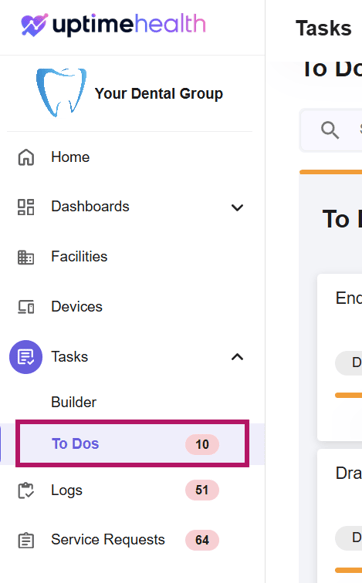
- Locate the relevant log task
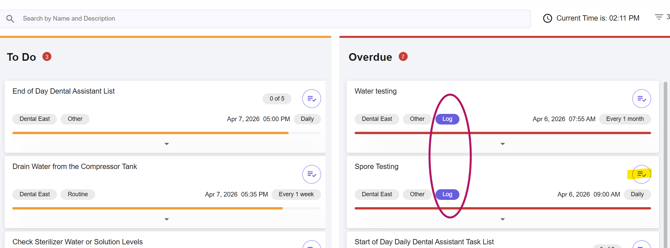
- Complete the task by clicking Add Log
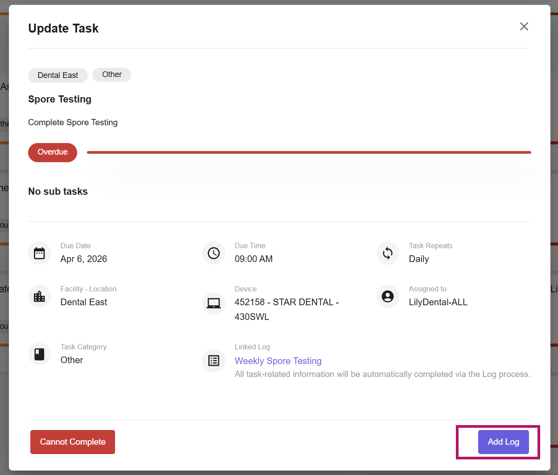
- Enter the required log information
- Save your progress or complete the log
How to Search for In-Progress Logs
Within the Logs section, you can easily find your in-progress logs using the filter feature.
Steps:
- Navigate to the Logs section
- Click the Filter button (located next to Add Log)
- Select your desired filter criteria
- Click Apply Filters
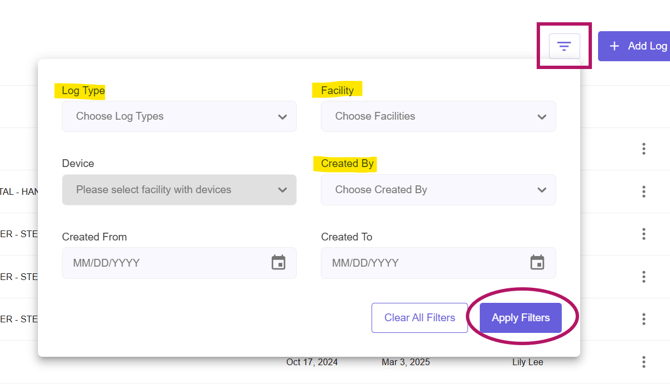
Available Filter Options
Use the following filters to refine your search:
- Log Type – Search for a specific type of log
- Facility – Filter by the associated facility
- Created By – Filter by user
- Tip: Select your name to quickly find your own logs
- Created From – Start date of the search range
- Created To – End date of the search range
Required Fields in Logs
Similar to tasks, some log fields are required before you can save or complete a log. Required fields are marked with an asterisk (*).
Common Required Fields:
- Name
- Image/PDF upload
- Date
- Time
Be sure to complete all required fields to successfully save or submit your log.
For additional guidance:
- Visit How to Complete a Log to finish an existing log
- Visit How to Manually Add a Log to create a new log outside of a task
For additional assistance please email our Support Team.