![FavIcon-1.png]](https://wiki.uptimehealth.com/hs-fs/hubfs/FavIcon-1.png?height=40&name=FavIcon-1.png)
Once a log has been started, it is automatically saved as an In Progress log. Follow the steps below to locate and complete your log:
-
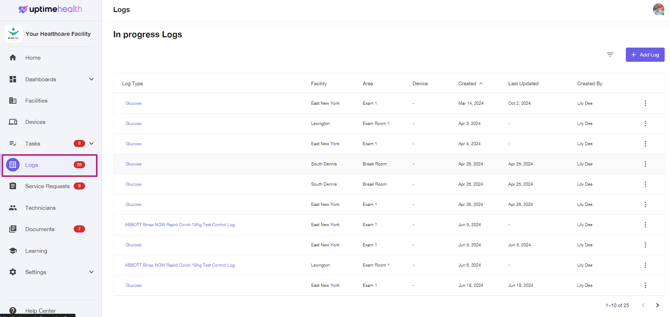
Select the Logs tab on the left-hand side of the platform.
-
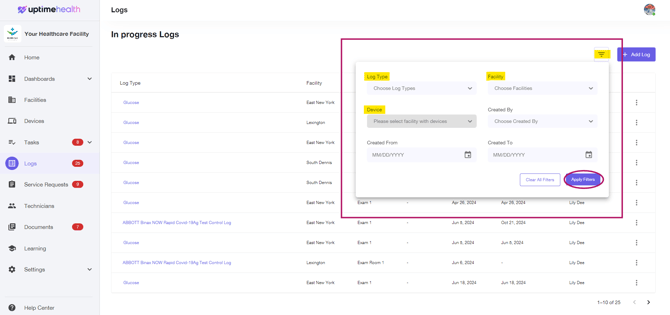
Use the filters to find your Log In Progress and click on Apply Filters
-
Filters:
- Log Type - The name of the log you've started (i.e. Spore Test, Water Line Testing)
- Facility - Search by your facility
- Device - If your log is attached to a device, you can search by device.
- Created By - Search by your name to find any logs started.
-
-
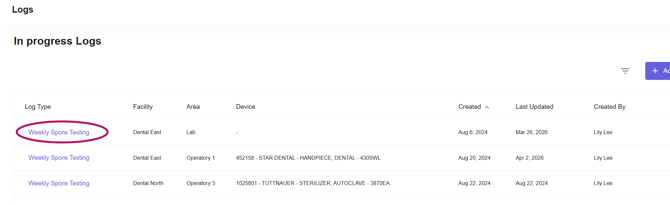
From the filtered list, locate the log that needs to be completed and click into it.
-
Follow the instructions, completing each step and documenting the information directly in the automated system.
-
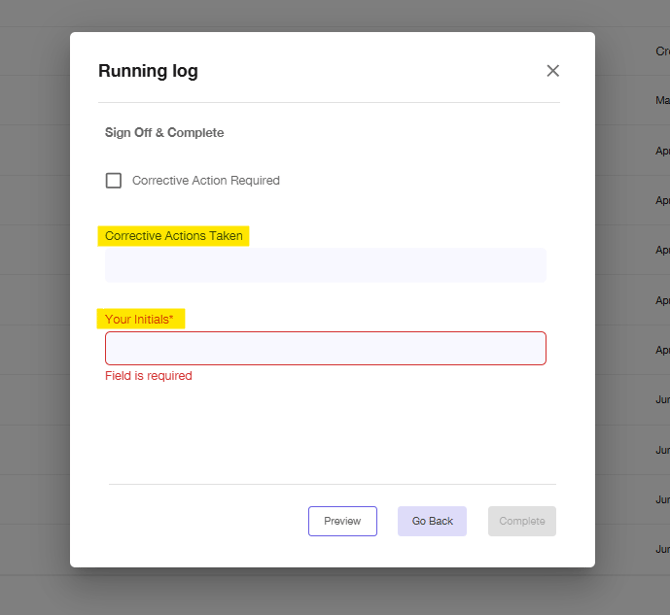
If the log requires a corrective action, be sure to document the corrective action taken in the free text field on the last page.
-
The platform will autofill the Initials Associate with your account if you have unique login's at your location.
Note: If your team shares a login, please be sure to document the initials of the person completing the report.
For additional assistance please email our Support Team.