![FavIcon-1.png]](https://wiki.uptimehealth.com/hs-fs/hubfs/FavIcon-1.png?height=40&name=FavIcon-1.png)
Note: If your log is associated with a task, please complete the task instead of manually adding a log.
When Should You Manually Add a Log?
Manual logs are intended for activities that:
- Do not occur on a regular schedule
- Are not automatically generated by tasks in the system
How to Manually Add a New Log
Follow the steps below to create a new log:
- Log in to the UptimeHealth platform
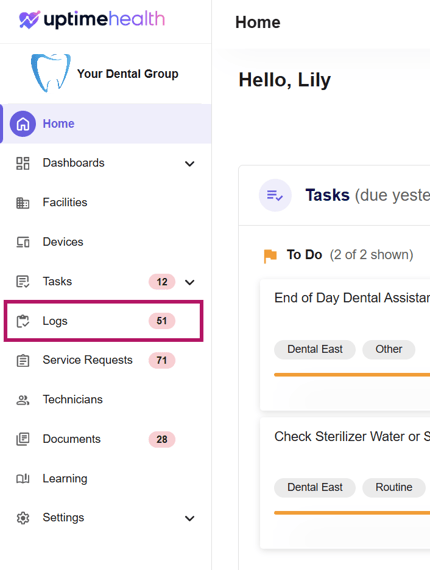
- From the left-hand navigation panel, click Logs
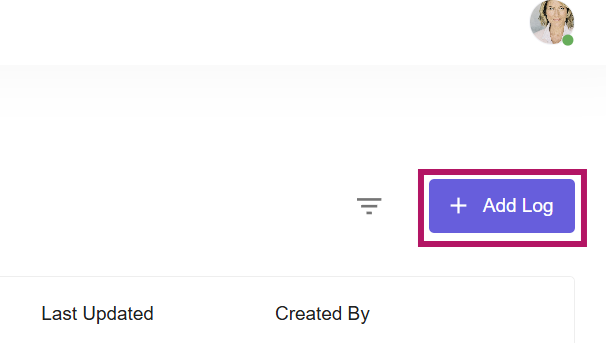
- In the top-right corner, click Add Log
- Select your Log Type, Facility, Area and Device if applicable to start your log.
- Log Type - Select the type of log that needs to be completed (i.e. Spore Test, Water Line Testing)
- Facility - The name of the facility the log pertains to
- Area - Associated with the area your log is being completed in (i.e. Sterilization, Operatory 1)
- Device - If your log is attached to a device, include the Asset ID. (i.e. If you are running controls on your Glucometer, you would attach the Glucometer Device to the log)
- Enter the required information to complete your log
- Click Next to move through each step
- Continue selecting Next until you reach the Complete Log button
Troubleshooting: “Next” Button is Greyed Out
If you are unable to proceed, it typically means required fields are missing. Please ensure all necessary fields are completed.
Required fields may include:
- Open text fields
- Image or PDF uploads
- Date fields
- Initials
Additional Help
For more guidance on completing a log, please refer to our How to Complete a Log article.
For additional assistance please email our Support Team.