![FavIcon-1.png]](https://wiki.uptimehealth.com/hs-fs/hubfs/FavIcon-1.png?height=40&name=FavIcon-1.png)
KEY NOTE: Always filter to your own facility before making any updates or changes.
What is the Service Requests Section?
The Service Requests section allows you to:
- View all open service requests
- Track job progress
- Communicate with assigned technicians
- Approve completed work or review invoice details
- How to pull a Service Request Report
This area is essential for managing maintenance workflows and ensuring timely follow-up across your facility.
How to Access and Use the Service Requests Section
Step 1: Log into the UptimeHealth Platform
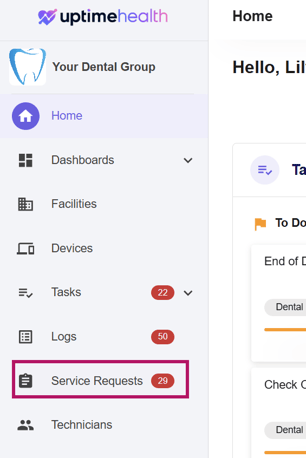
Step 2: Navigate to Service Requests
In the left-hand navigation panel, click on Service Requests.
This will take you to your main list of service requests.
Step 3: Apply Filters (Top Right Corner)
In the top right-hand corner, click the chevron down icon to view all available filters.
NOTE: Click on the Area drop down to see facility filters.
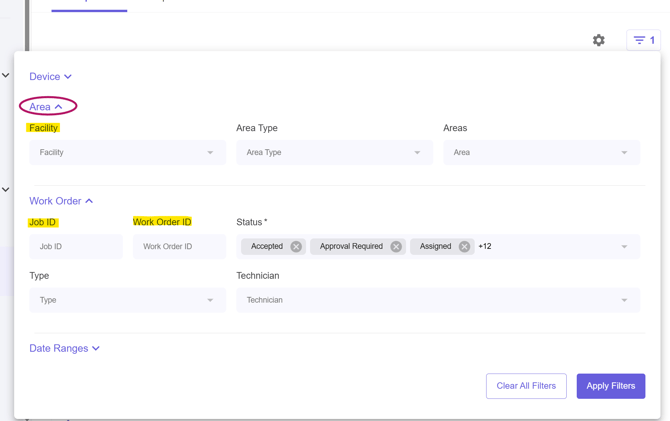
Available filters include:
a. Facility
If you are assigned to multiple facilities, select one to view its requests.
-
If no facility is selected, you will see requests across all existing facilities in your organization.
b. Job ID
Enter a specific Job ID to locate a particular service request.
c. Work Order ID
If multiple work orders fall under a single Job ID (usually separated by device), you may filter by Work Order ID for more precise review.
d. Status
Filter by request status, such as:
- Accepted
- Billing Review
- Customer Review
- Technician Scheduled
- Completed
If you're looking for jobs that require approval after invoice details have been entered, use the Customer Review filter.
Viewing and Managing Service Requests
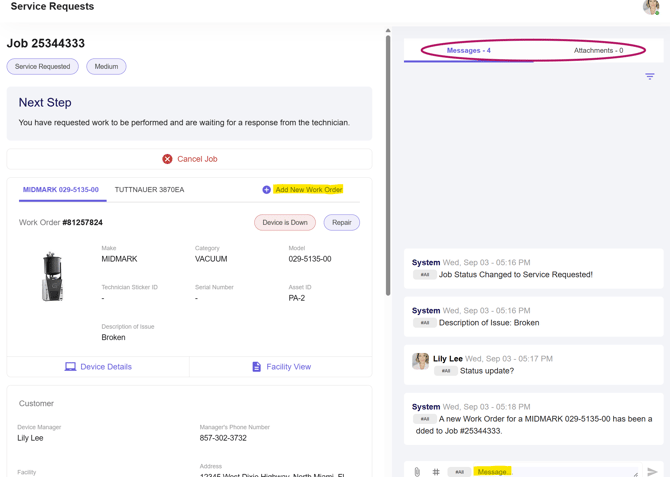
Click on the Job ID or Work Order ID to open the request details.

Inside the request record, you can:
-
View your scheduled service
-
Cancel a service request
-
Add a new work order
-
Communicate with your technician
Messaging Note: Only the user who originally submitted the service request or a top-level administrator can send messages to the technician through the platform.
Key Reminders
- Always filter to your facility before reviewing or updating service requests.
- Only the user who created the request or a top-level administrator can message the technician.
- Use the Customer Review status filter to find jobs awaiting your approval.
- Job IDs represent the full request; Work Order IDs represent device-specific work within that job.
For additional assistance please email our Support Team.