![FavIcon-1.png]](https://wiki.uptimehealth.com/hs-fs/hubfs/FavIcon-1.png?height=40&name=FavIcon-1.png)
What Is the Service Requests Dashboard?
The Service Requests Dashboard is a centralized location where you can track, filter, and review all service-related activity. It includes:
- Job Status Tracker
A snapshot of the total number of jobs currently Requested, In Progress, Pending Approval, or Completed. - All Job Stats
Metrics showing counts of Open, Completed, and Requested jobs, as well as your average time to complete and close service requests. - Planned Preventative Maintenance (PM) Stats
Displays all overdue, open, and completed PMs for your facility. - Current Open Job Stats
Breaks down all open jobs by Technician and Facility. - All Work Orders Report
A detailed table containing every data point related to each service request. This includes:
-
- Work Order/Job Number
- Job Target (device or facility)
- Device Information (Asset ID, Make, Model, Category)
- Technician Information
- Financial Information
- Status and timestamps
This report is fully downloadable and can be used for audits, internal reporting, and operational tracking.
How to Access the Service Requests Dashboard
Step 1: Log into the UptimeHealth Platform
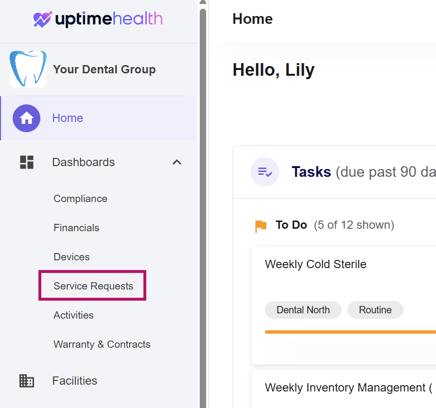
Step 2: In the left-hand navigation panel, select Dashboards → Service Requests
Step 3: Apply Filters (if needed)
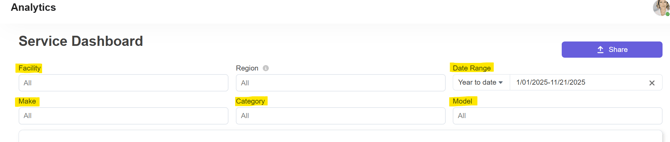
At the top of the dashboard, you can filter the data using:
- Facility
- Region (if applicable)
- Date
- Make
- Model
- Category
These filters will narrow the dashboard metrics and the Work Orders report to show only the data you're looking for.
How to Download the All Work Orders Report
Follow the steps below to export the full table of all service request data:
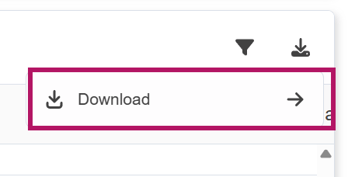
Step 1: On the far right of the All Work Orders report, click the Download icon.

Step 2: Select Download from the dropdown.
Step 3: Choose XLSX as the file format and click Download.
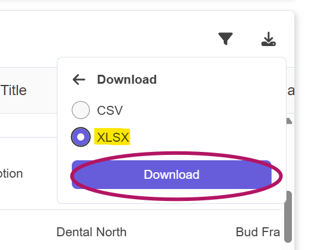
Your file will export and save directly to your computer.
For additional assistance please email our Support Team.