![FavIcon-1.png]](https://wiki.uptimehealth.com/hs-fs/hubfs/FavIcon-1.png?height=40&name=FavIcon-1.png)
How to Reassign a Technician
- Log in to the UptimeHealth Platform.
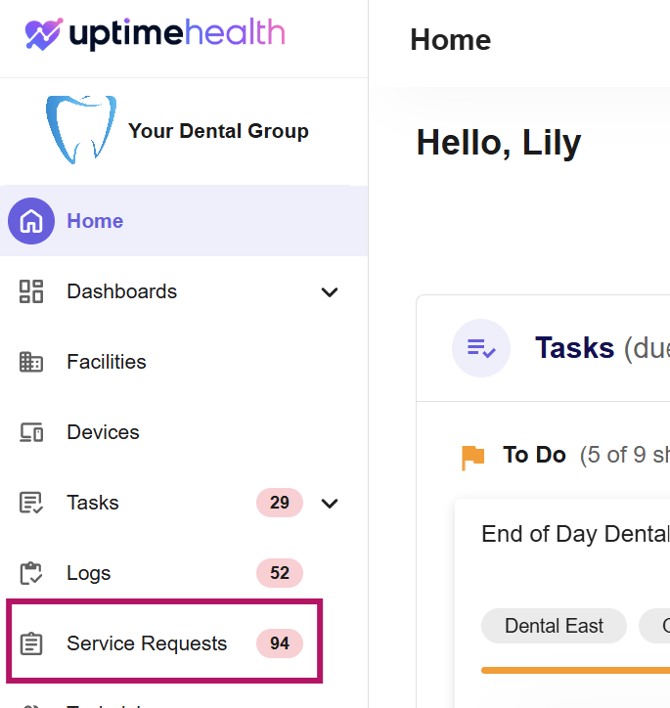
- Click Service Requests.
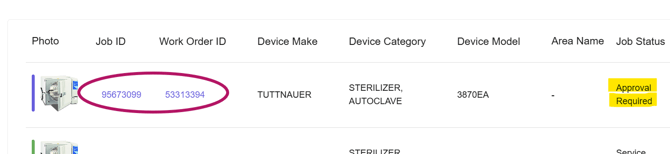
- Locate the service request that requires approval and click into the Job ID or Work Order ID.
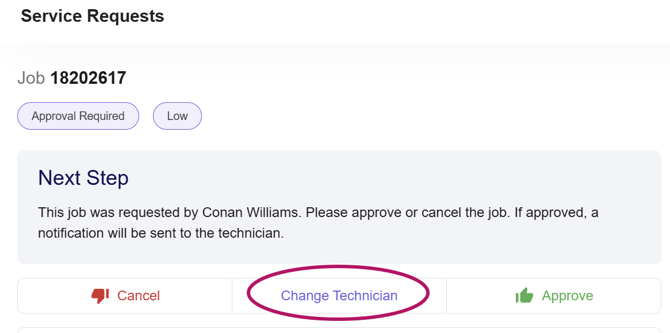
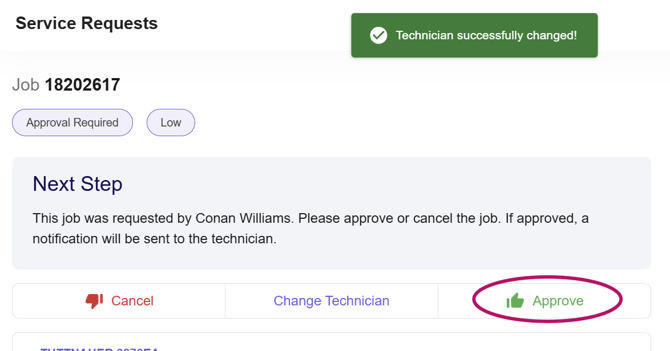
- Before approving or denying the request, click Change Technician.
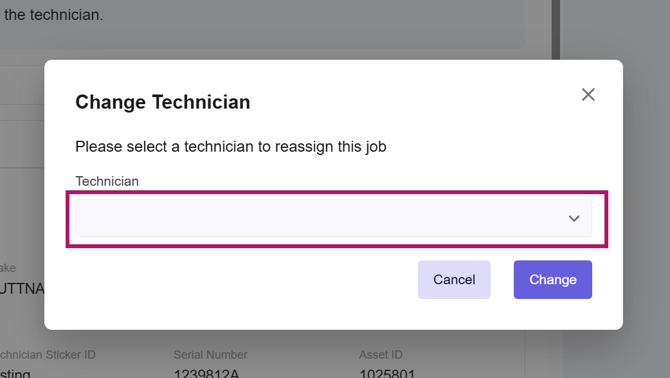
- Select your preferred technician from the dropdown, and click Change.
- Click Approve.
Key Information
- This feature is only available to Top Level Administrators.
- The account must have the Approval Stage activated.
- The technician can only be reassigned before the service request is approved.
- Once the request is approved, it will be sent to the newly selected technician.
- If the request is denied, it will not be sent to a technician.
For additional assistance please email our Support Team.