![FavIcon-1.png]](https://wiki.uptimehealth.com/hs-fs/hubfs/FavIcon-1.png?height=40&name=FavIcon-1.png)
Step 1: Log into the Platform
Sign in to your UptimeHealth account.
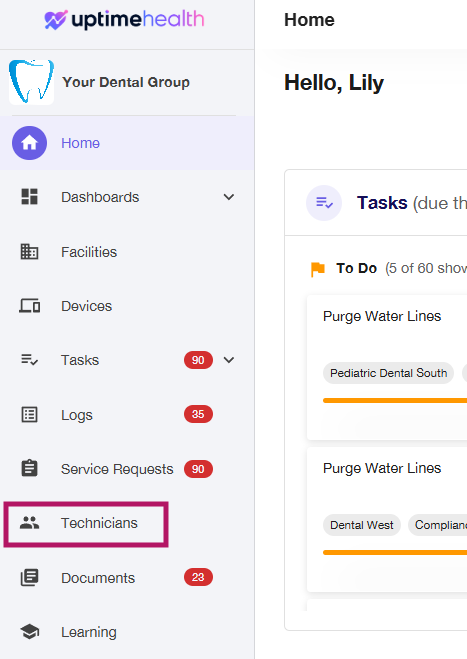
Step 2: Navigate to Technicians
In the left-hand navigation panel, click Technicians.
Option 1: Search via Marketplace
Follow these steps if you’d like to add a technician from the UptimeHealth Marketplace:
Step 1: Open Marketplace Search
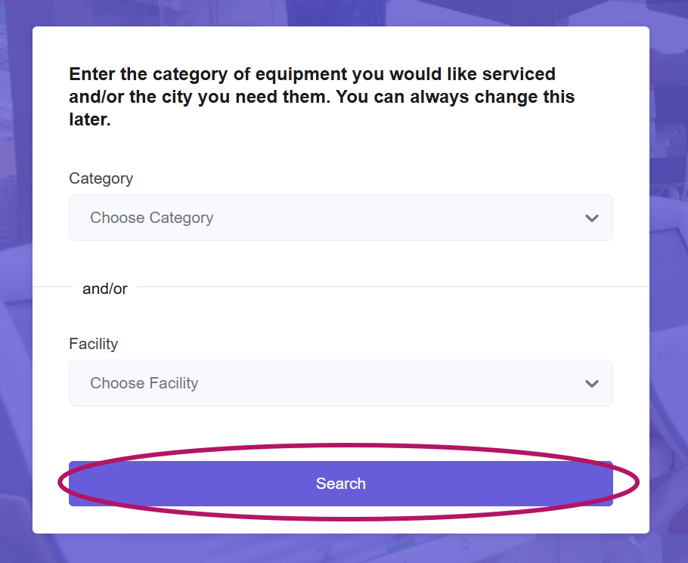
In the top-right corner, click Search via Marketplace, then click Search.

Step 2: Apply Filters and Search
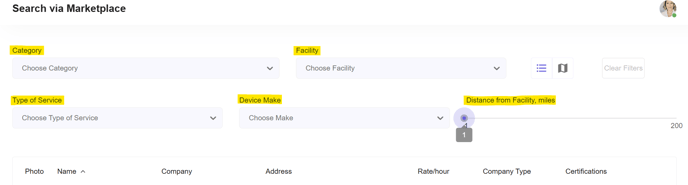
On the Marketplace screen, you can filter technicians by:
-
Category – Device types (e.g., handpieces, autoclaves).
-
Facility – Find technicians within range of a selected facility.
-
Use the Distance from Facility slider to set your preferred range.
-
-
Type of Service – Standard, Premium, Repair Depot, or TeleTech Help.
-
Device Make – Filter by specific device types.
Click Search once your filters are set.
Step 3: Select and Add Technician
-
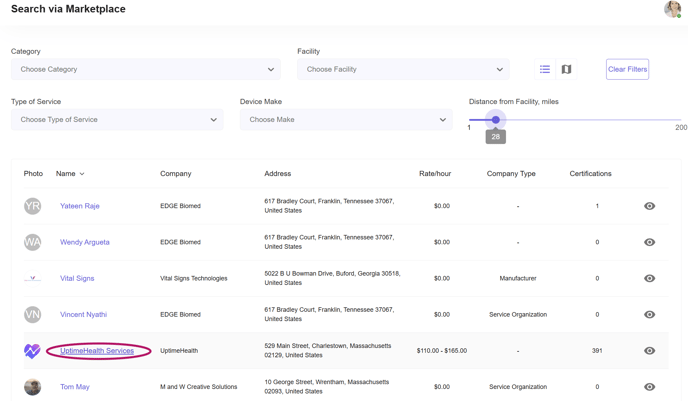
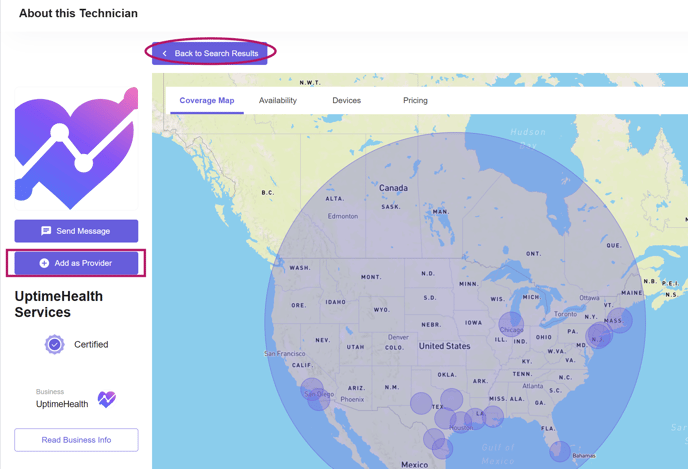
From the results, click the technician’s name.
-
Click Add as a Provider.
-
Complete the setup:
-
Facilities – Select facilities for this technician, then click Next.
-
Support – Choose whether they’ll support Facility, Device, or Both, then click Next.
-
Contracts – Select Yes under “Same pricing for all categories.” Enter 0 in the pop-up, then click Next.
-
Step 4: Save and Invite
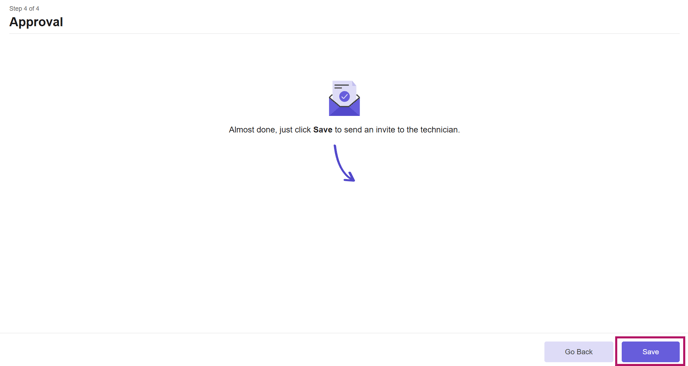
On the Approval page, click Save.
The technician will receive an invitation to join your account.
Option 2: Add Your Own Technician
Follow these steps if you’d like to manually add a technician you already work with:
Step 1: Add Technician
In the top-right corner, click Add Your Technician.

Step 4: Enter Contact Information
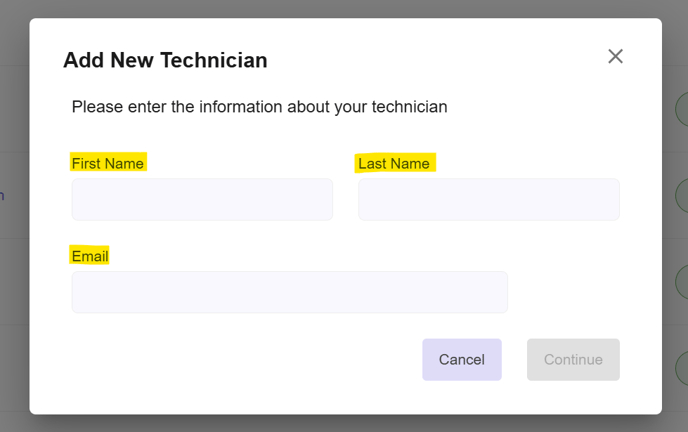
Fill out the technician’s details:
-
Name
-
Email
-
Phone Number
Click Next.
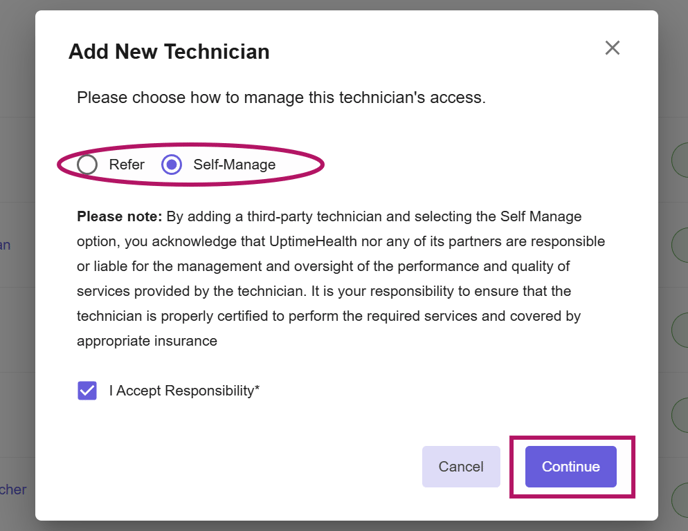
Step 2: Choose Referral or Self-Manage
-
Refer – UptimeServices will contact the technician, verify credentials/insurance, and potentially add them as an affiliate.
-
This process can take a few days to a few weeks depending on the technician’s responsiveness.
-
Updates will be provided to your account owner within 14 days or sooner.
-
-
Self Manage – You take full responsibility for oversight and compliance (certifications, insurance, service quality). UptimeHealth and its partners are not liable.
Step 3: Complete Setup
On the technician’s profile screen, follow these sections:
-
Facilities – Select facilities for this technician, then click Next.
-
Support – Choose whether they’ll support Facility, Device, or Both, then click Next.
-
You may select all categories or assign individually per facility.
-
-
Contracts – Select Yes under “Same pricing for all categories.” Enter 0 in the pop-up, then click Next.
Step 4: Save and Invite
On the Approval page, review your selections and click Save.
The technician will receive an invitation to join your account.
For additional assistance please email our Support Team.