![FavIcon-1.png]](https://wiki.uptimehealth.com/hs-fs/hubfs/FavIcon-1.png?height=40&name=FavIcon-1.png)
Each user is able to customize what tasks they see in their To Do section and this selection uses sticky filters that will stay even after logging out and back in. If you are not seeing what you expect in your To Do section please take the steps below to update your filters as needed!
The Tasks > To dos section defaults to show all the tasks you have due today and yesterday, you can use the steps below to change your view.
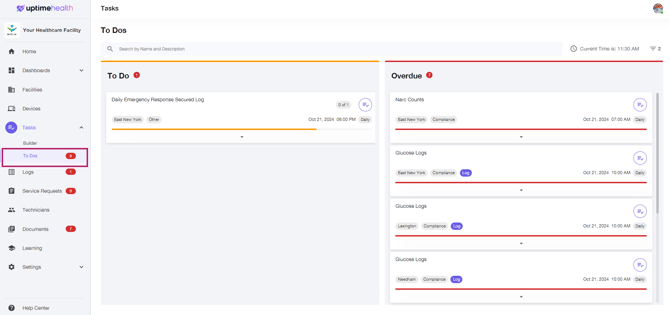
- Click on Tasks > To dos section in the left-hand side navigation panel.
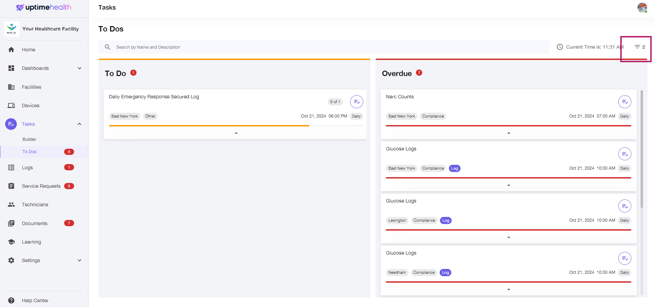
- Click on the filter option in the upper right hand corner.
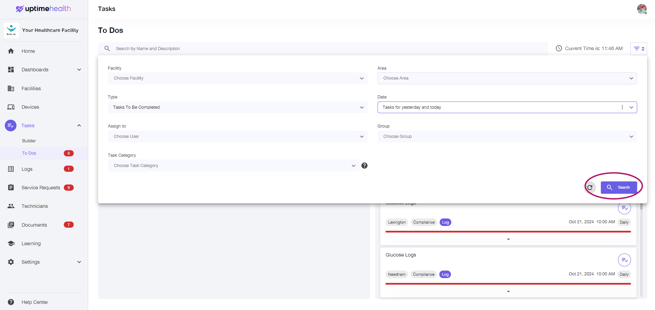
- Select any combination of filters you would like and once you have chosen your desired selection, hit Search to see your results.
Key Reminders
- Monthly, quarterly, and other recurring tasks:
- These tasks are generated based on their specific due date rather than a specific day of the week. Be sure to expand the Date Due filter to include the appropriate date range when looking for these tasks.
- Overdue tasks:
- Overdue tasks will only appear if their due date falls within the selected date range. For example, if Tasks due yesterday and today is selected, tasks that were due before yesterday will not appear.
- To view older overdue tasks, expand the Date Due filter to include a broader date range.